TrueCAD Documentation
Parametric, precise CAD modeling that feels like Blender and uses the keys you already know.
Join the Discord for helpOverview#
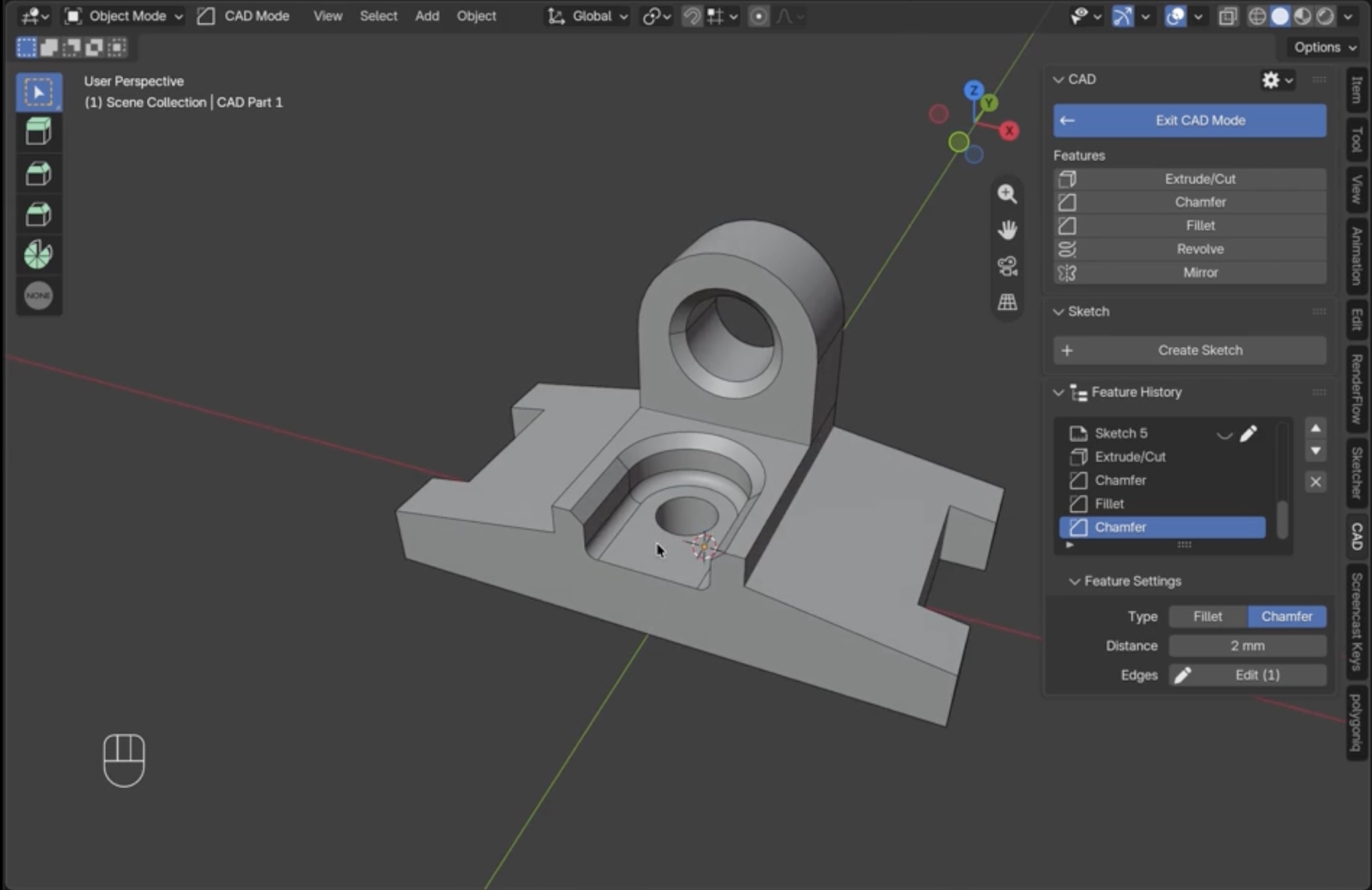
TrueCAD adds exact, dimensioned solid modeling to Blender. You sketch, extrude, cut, fillet, chamfer, shell, mirror and combine solids, then export to STEP for manufacturing or 3D printing, all without leaving Blender.
A CAD part is a new type of Blender object. Your history of operations shows up in the Feature History panel. The tools reuse Blender’s own shortcuts: E extrudes, Ctrl+B fillets and chamfers, Tab enters and leaves editing.
- Exact geometry. Real curved surfaces and true fillets, not a mesh approximation.
- Always editable. Every operation is recorded. Change a dimension later and everything after it updates.
- Precision is opt-in. Drag loosely, or type an exact number whenever you care.
- Safe. The CAD engine runs separately from Blender, so a failed operation reports an error instead of taking your scene down.
- Go Further. Any CAD part can be converted to a regular mesh.
Install#
- Use Blender 5.0 or newer. Older versions will not work.
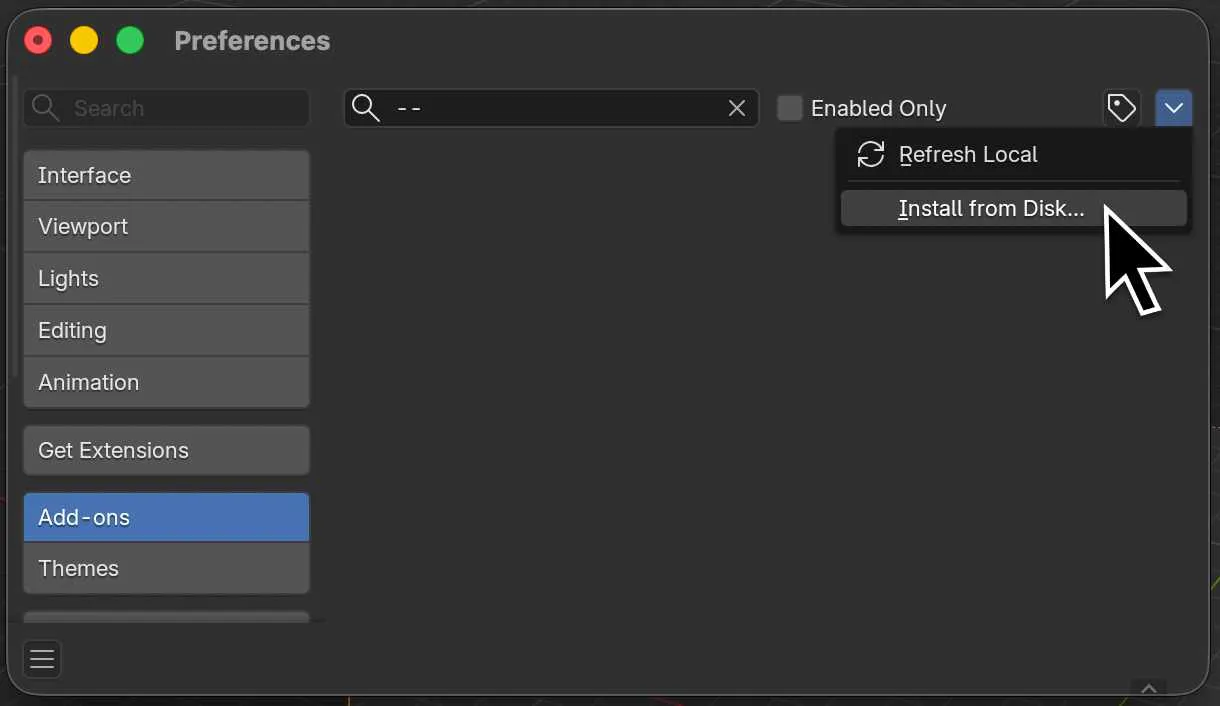
- In Blender, open Edit > Preferences > Add-ons, click the arrow in the top right corner > Install from Disk, and choose the downloaded zip.
- Enable TrueCAD in the list.
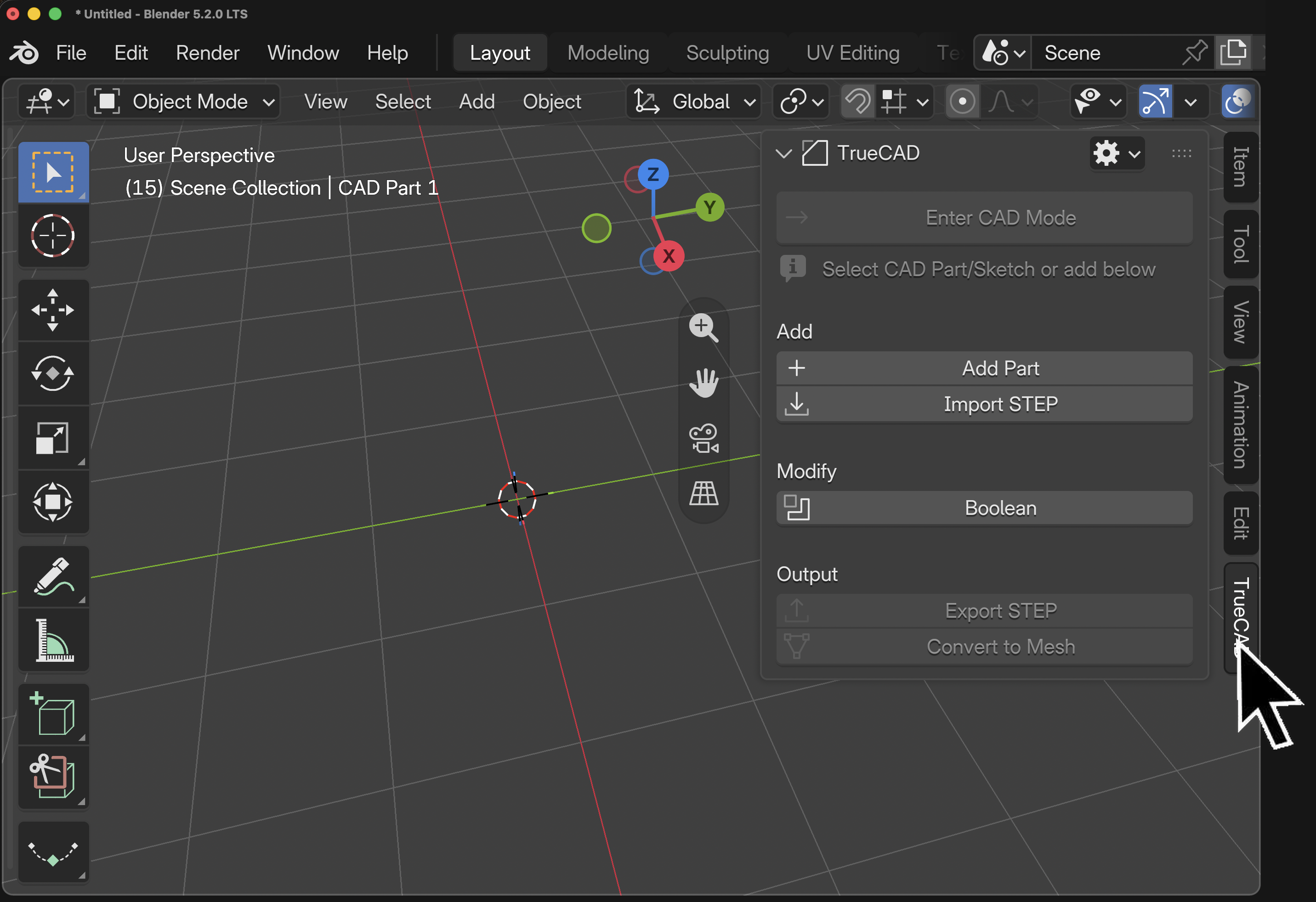
- In the 3D viewport, press N to open the sidebar and click the TrueCAD tab.
First launchThe first time the addon runs, it unpacks its bundled components. This takes a few seconds and only happens once.
Quick start#
Build a bracket with a rounded edge and export it, in about five minutes.
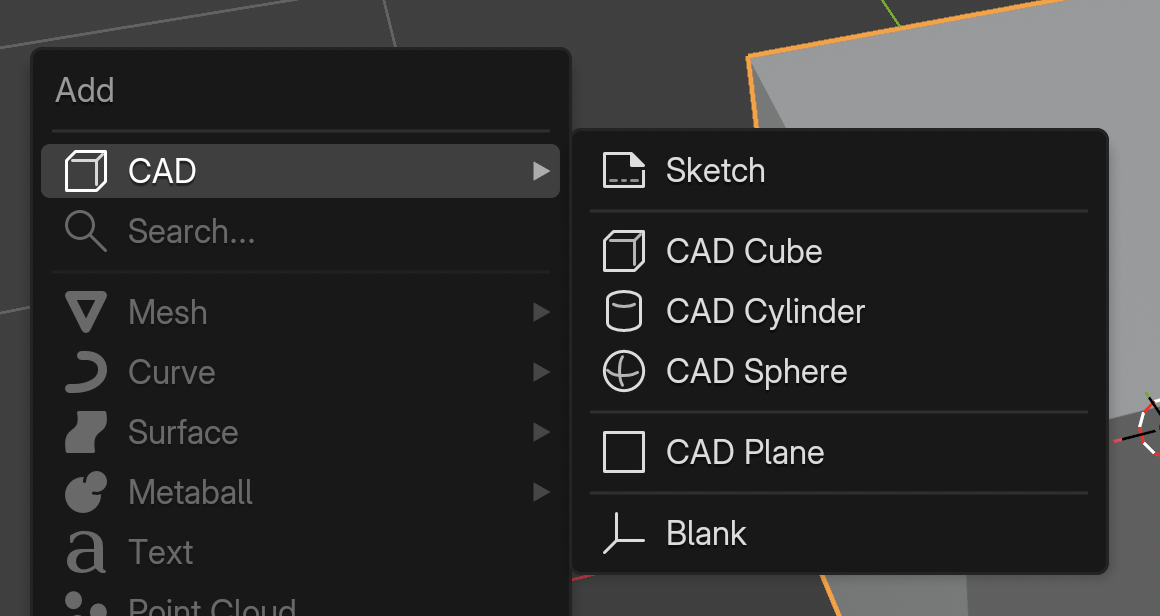
- Add a part In the 3D viewport press Shift+A and choose CAD > CAD Cube. You now have a CAD object.
- Enter CAD Mode With the part selected, press Tab. Faces and edges become selectable and the CAD tools appear in the toolbar on the left side of the 3D viewport.
- Pull a face Click a face, then press E and drag to push or pull it. Type a number to set an exact distance and press Enter.
- Cut a hole Select the top face, right click and choose New Sketch on Face to start a sketch on it. Draw a circle with C, dimension it with D, press Tab to leave the sketch, then select the circle region, press E and drag the face down to cut a hole, then press Enter to confirm.
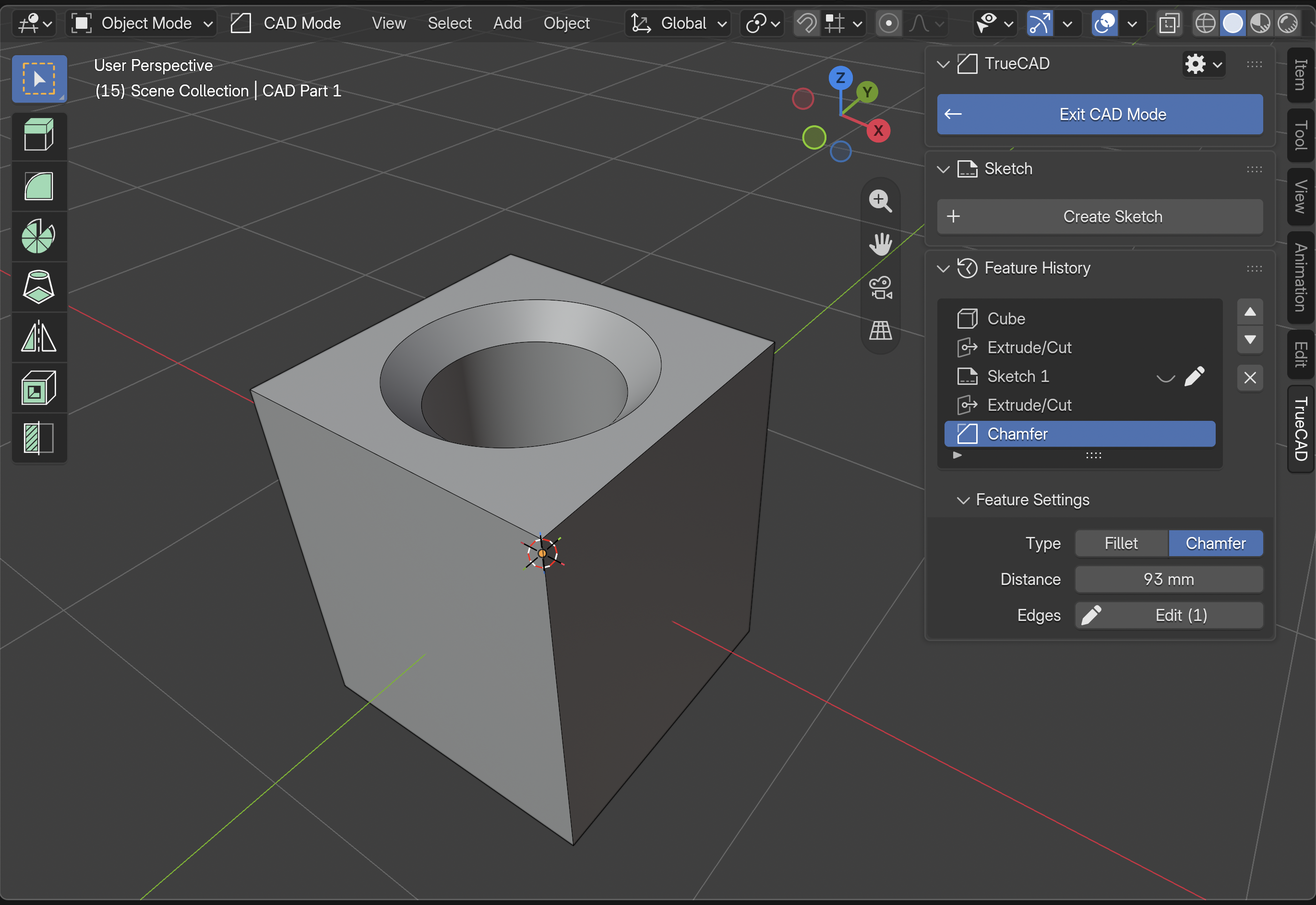
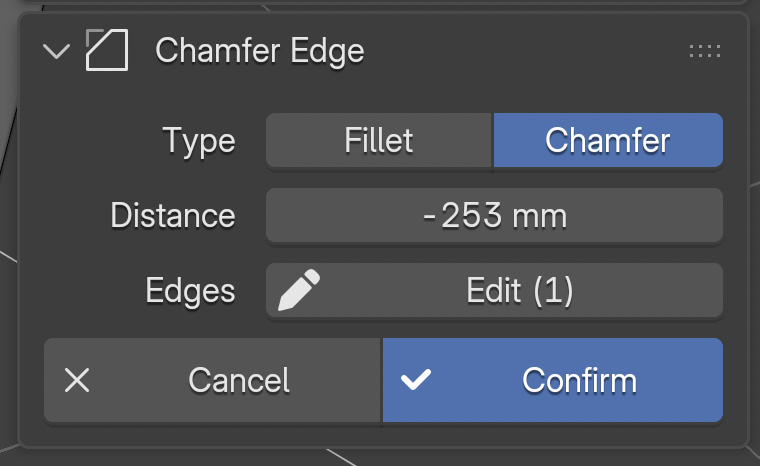
- Round an edge Click an edge, press Ctrl+B and drag to set the size. Dragging one way makes a fillet (a round), the other way makes a chamfer (a flat bevel). Press Enter to confirm.
- Review the history The Feature History panel now lists: Cube, Sketch, Extrude/Cut, and the fillet/chamfer, in order.
- Export Press Tab to leave CAD Mode, then use Export STEP in the CAD panel.
Core concepts#
CAD parts and meshes
A CAD part is a new type of Blender object. It's different from a regular mesh in that it stores its exact CAD solid shape. Edit the part through CAD tools. You can always export it as a STEP file and convert it to a mesh.
Sketches
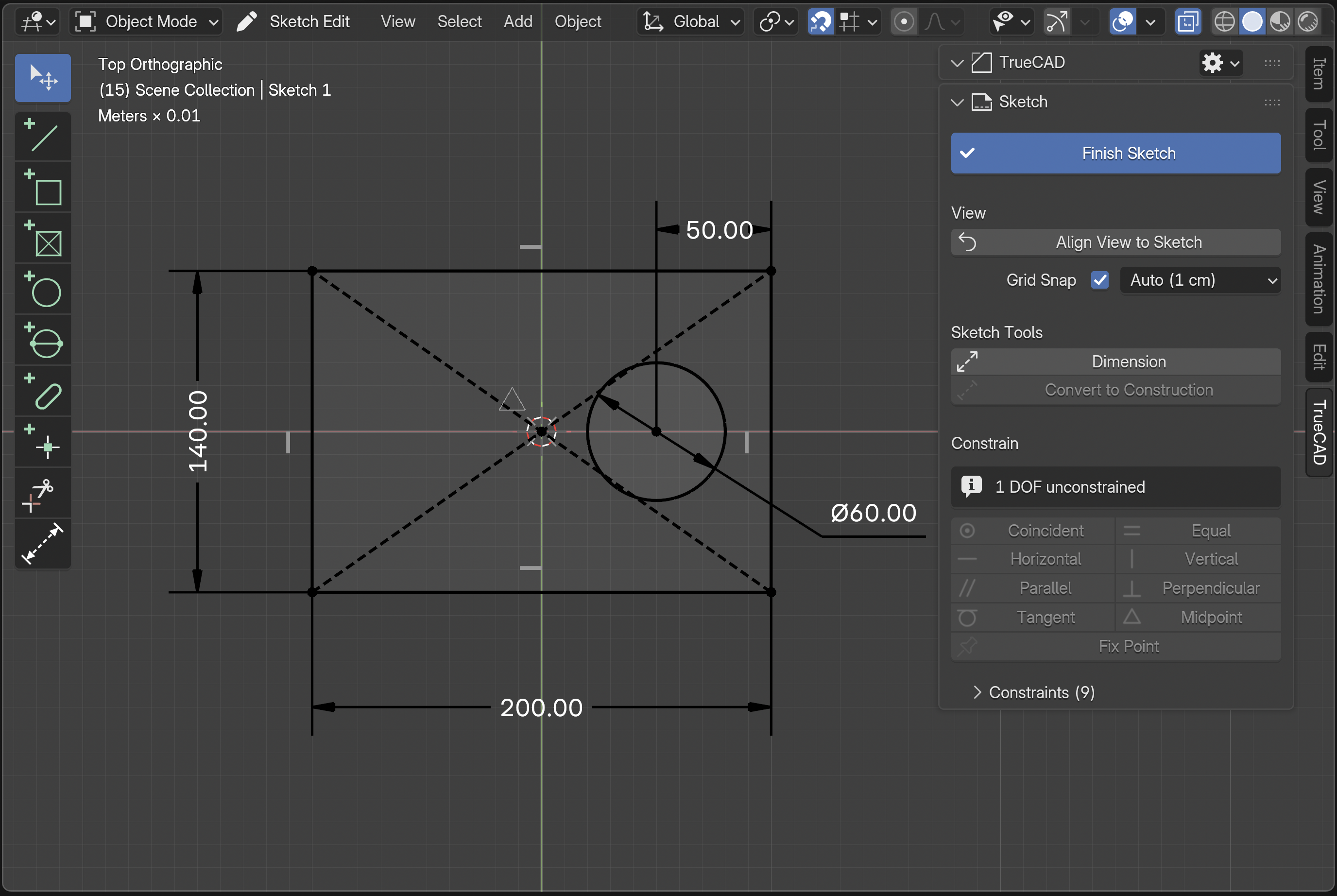
A sketch is a flat drawing made of points, lines, circles and arcs, plus constraints and dimensions that control them. Sketches are separate objects attached to a part. Closed areas in a sketch (regions) are what you extrude, cut or revolve.
Feature History
Every operation becomes an entry in the Feature History, in order, like a modifier stack. Select an entry to change its settings. Later entries are rebuilt automaticall. When a rebuild results in a conflict, TrueCAD will notify you and you can fix it manually (e.g. reselect edges that changed).
Units
Use the gear icon in the CAD panel header to switch the distance unit between meters, centimeters, millimeters, inches and feet. Typed values use that unit.
Viewport quality
The same gear menu has a Viewport model quality slider that sets how smooth curved faces look in the viewport, from 0% to 100%. The default is 50%. Lower is faster. Higher looks rounder but makes edits, drags and rebuilds slower.
Panels and toolbar#
The CAD sidebar tab
Press N in the viewport and open the TrueCAD tab. The tab changes depending on whether you are in CAD Mode.
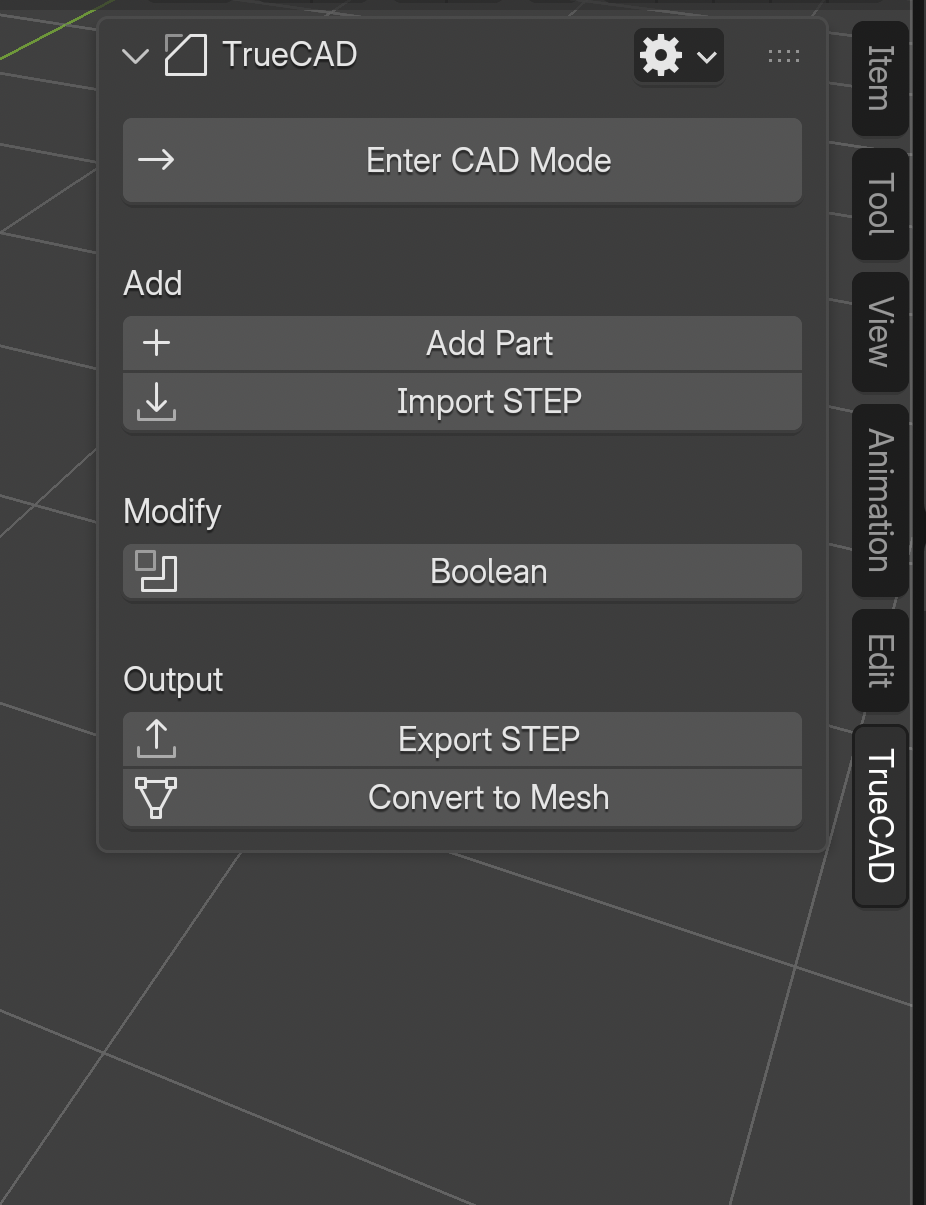
Outside CAD Mode
- Enter CAD Mode: start editing the selected part.
- Add: Add Part and Import STEP.
- Modify: Boolean, to combine parts.
- Output: Export STEP and Convert to Mesh.
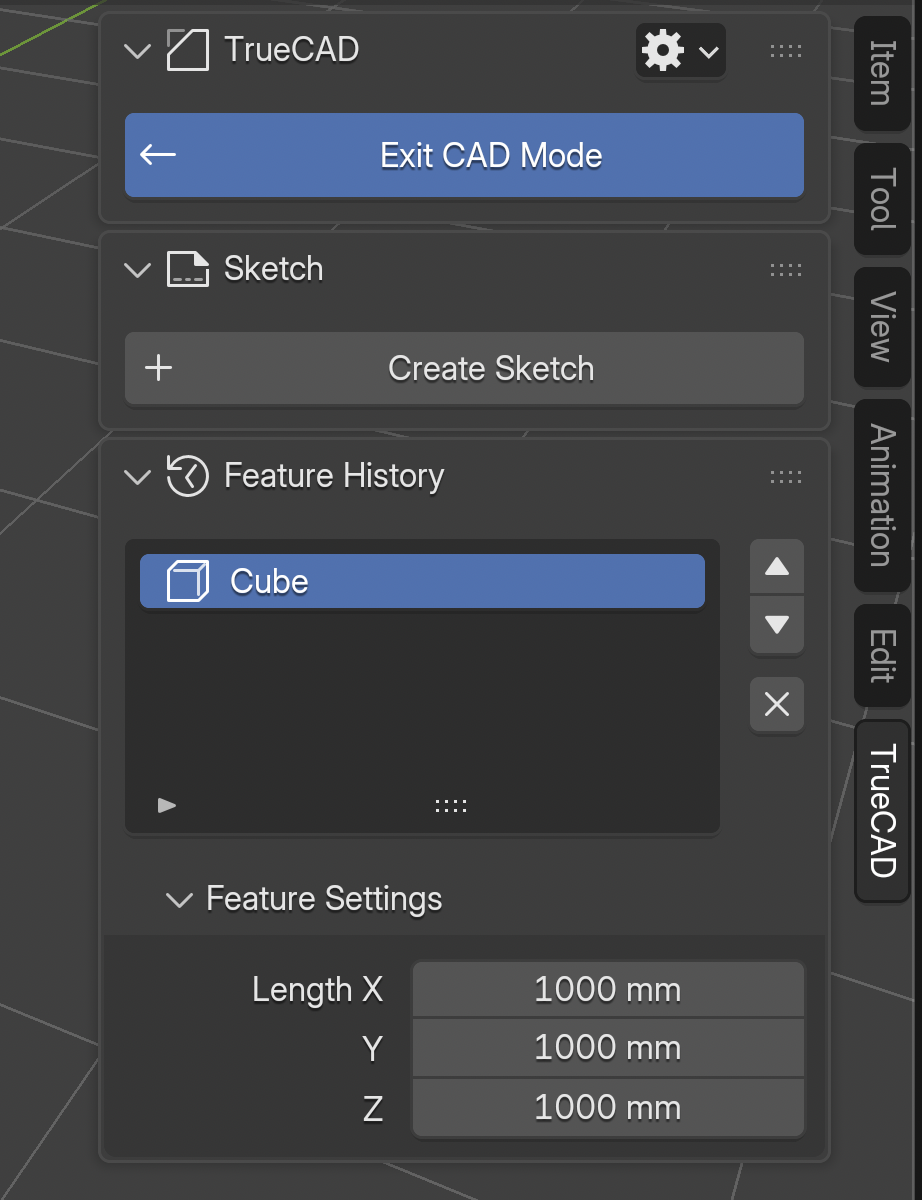
In CAD Mode
- Exit CAD Mode: return to Object Mode.
- Sketch: Create Sketch, to start a new sketch.
- Feature History: the ordered list of operations on the active part.
- Feature Settings: the editable values of the selected history entry.
In both views, the gear icon in the TrueCAD panel header opens the settings for units and viewport quality.
While an operation is running, a panel appears here with its title, an editable value, and Confirm and Cancel buttons.
Toolbar
In CAD Mode the left toolbar (T) shows the feature tools. Hover any tool to see its description and shortcut.
| Icon | Tool | What it does | Key |
|---|---|---|---|
 | Extrude/Cut | Pull or cut a face or sketch area into a solid | E |
 | Chamfer/Fillet | Bevel or round the selected edges | Ctrl+B |
 | Revolve | Spin a sketch area around an axis | V |
 | Loft | Build a solid through two or more sketch areas or faces | O |
 | Mirror | Mirror the part or selected features across a plane | M |
 | Shell | Hollow a solid, removing chosen faces | I |
 | Section View | Slice the part with a movable plane | K |
While editing a sketch the toolbar switches to the sketch tools, listed under Drawing tools.
CAD Mode#
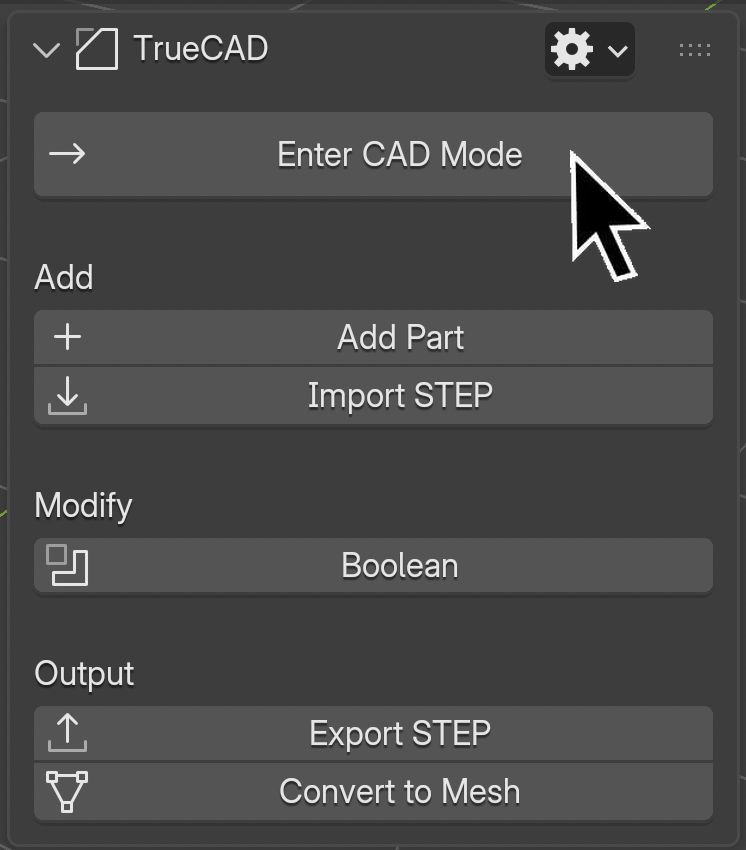
CAD Mode works like Blender’s Edit Mode. Select a CAD part and press Tab to enter. Press Tab again to leave. You can also enter and exit CAD Mode at the top of the TrueCAD Panel.
Inside CAD Mode:
- The exact edges and faces of the part are shown and can be clicked.
- Click an edge or face to select it. Shift+click adds more edges to the selection.
- Click a closed sketch area to select it, Shift+click to select several.
- All feature tools and their shortcuts become available.
Heads upObject-level Move, Rotate, Scale, Hide and Duplicate are switched off while editing a CAD part or a sketch, because they would shift geometry that is defined by exact dimensions. Leave the mode to use them.
Live editing#
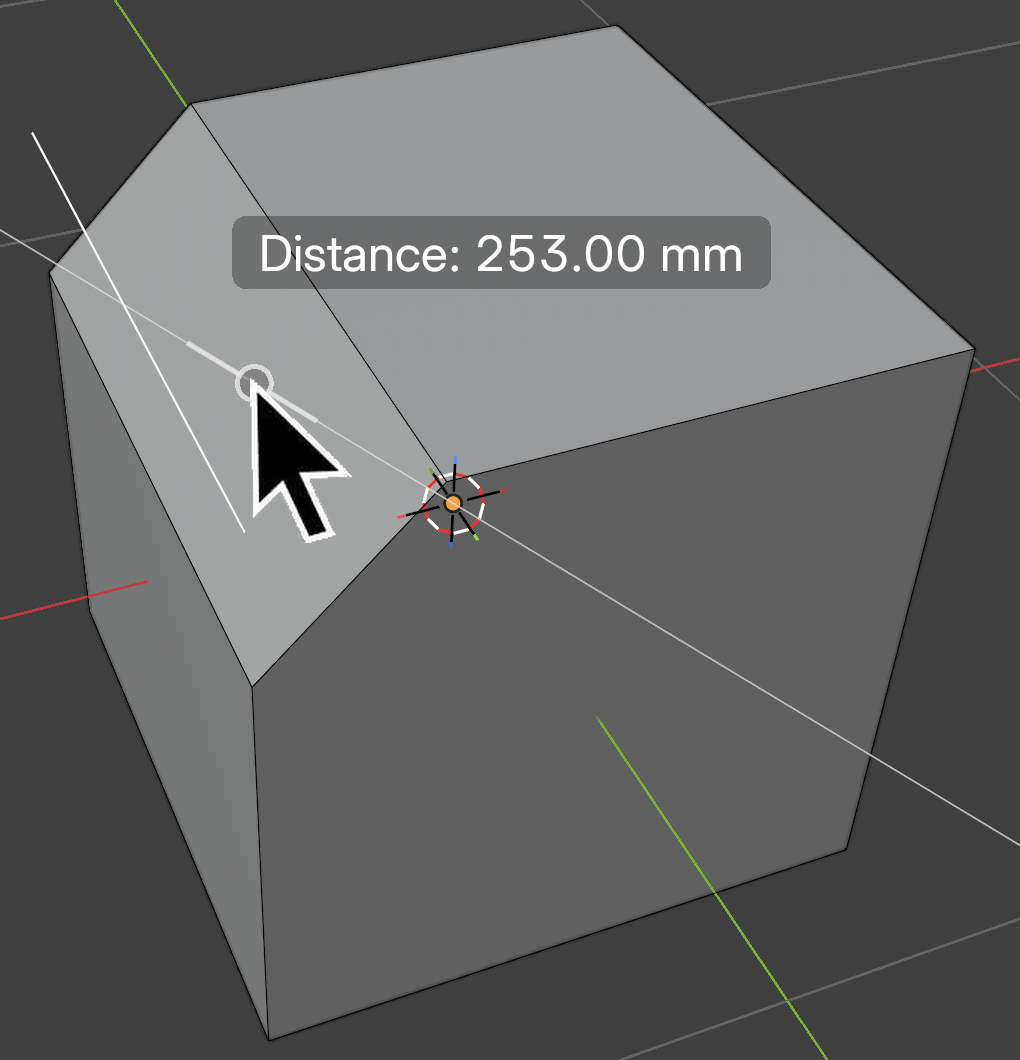
Every feature tool follows the same loop: select, press the shortcut key, drag, and fine tune.
- Drag to preview the result live in the viewport.
- Type a number at any time for an exact value, or edit the value field in the sidebar panel. Scrolling also adjusts the value where it makes sense.
- Enter, a click in the viewport, or the Confirm button commits the operation.
- Esc, right click, or the Cancel button discards it.
- Some tools show dropdowns for extra choices, such as Join / Cut / Intersect or One Side / Symmetric / Through All.
You can reopen a committed feature later from the Feature History and change its numbers. You can also adjust the last operation with Blender’s own F9 panel.
Creating parts#
Open Add > CAD in the viewport (Shift+A) and pick Sketch, a primitive (Cube, Cylinder or Sphere), CAD Plane or Blank. Blank creates an empty part with no starting shape. You can also use Add Part in the TrueCAD tab. Starting from a sketch is the usual route for custom shapes: draw a profile, extrude it, then refine with fillets and cuts.
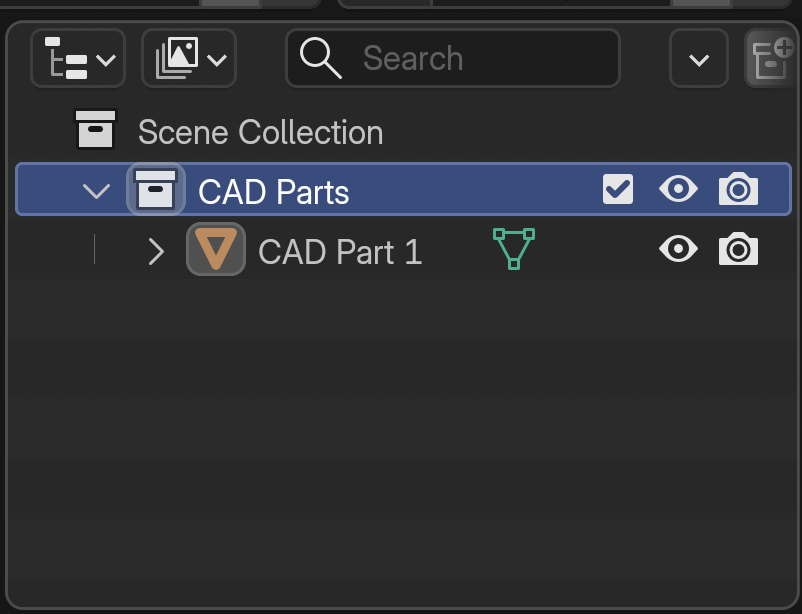
New parts, sketches and CAD planes are placed in a CAD Parts collection, which is created automatically the first time you add one.
Sketching#
Starting a sketch
| How it works | Preview |
|---|---|
| On a world planePress Shift+A > CAD > Sketch and choose a plane in the viewport. Otherwise, click the Create Sketch button in the TrueCAD tab of the N panel on the right. | 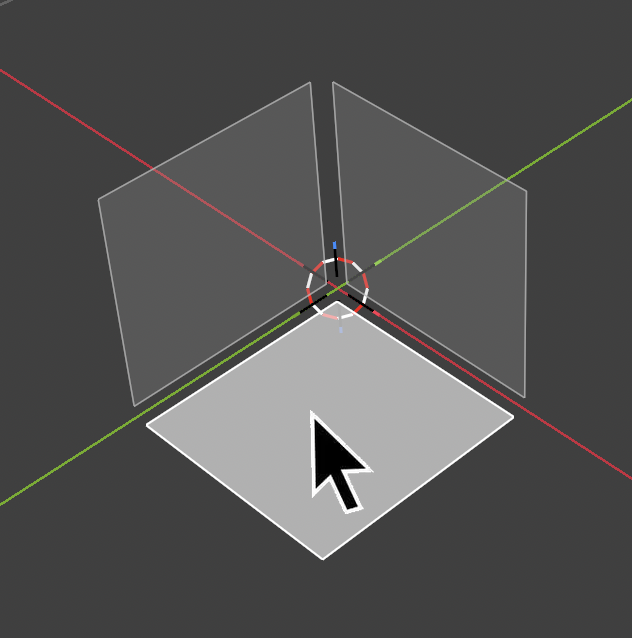 |
| On a faceSelect a planar face of a part and choose New Sketch on Face. | 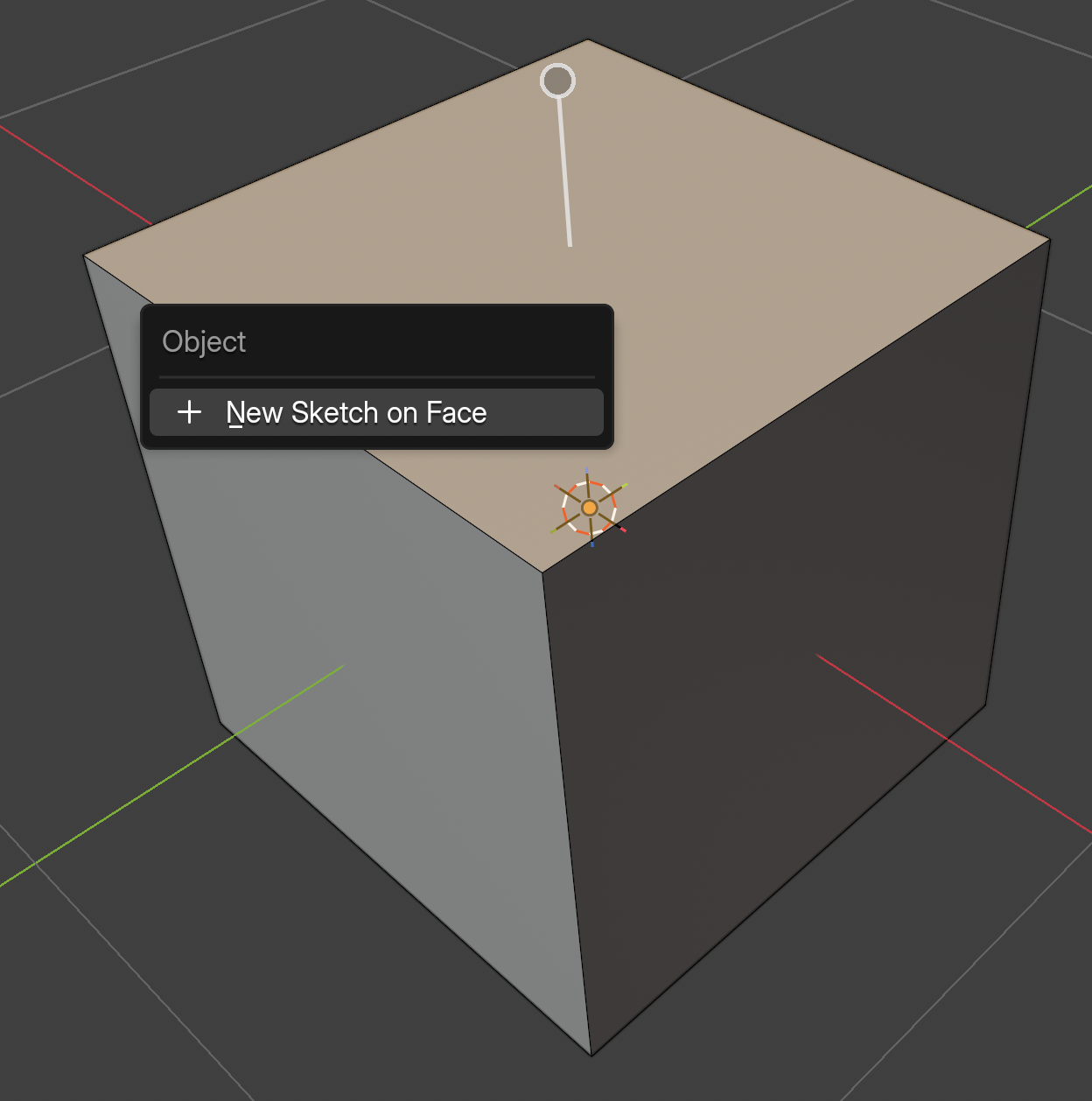 |
| On a custom planeUse Shift+A > CAD Plane in CAD Mode (the Add menu there offers Sketch and CAD Plane, and Shift+A outside CAD Mode shows the CAD add menu), then pick Top, Front or Right, then drag the gizmo (or type the Offset in the Plane settings) to move it away from the origin, then Confirm (or Cancel). The plane is added to the part’s Feature History. Then choose On CAD Plane when creating a sketch. | 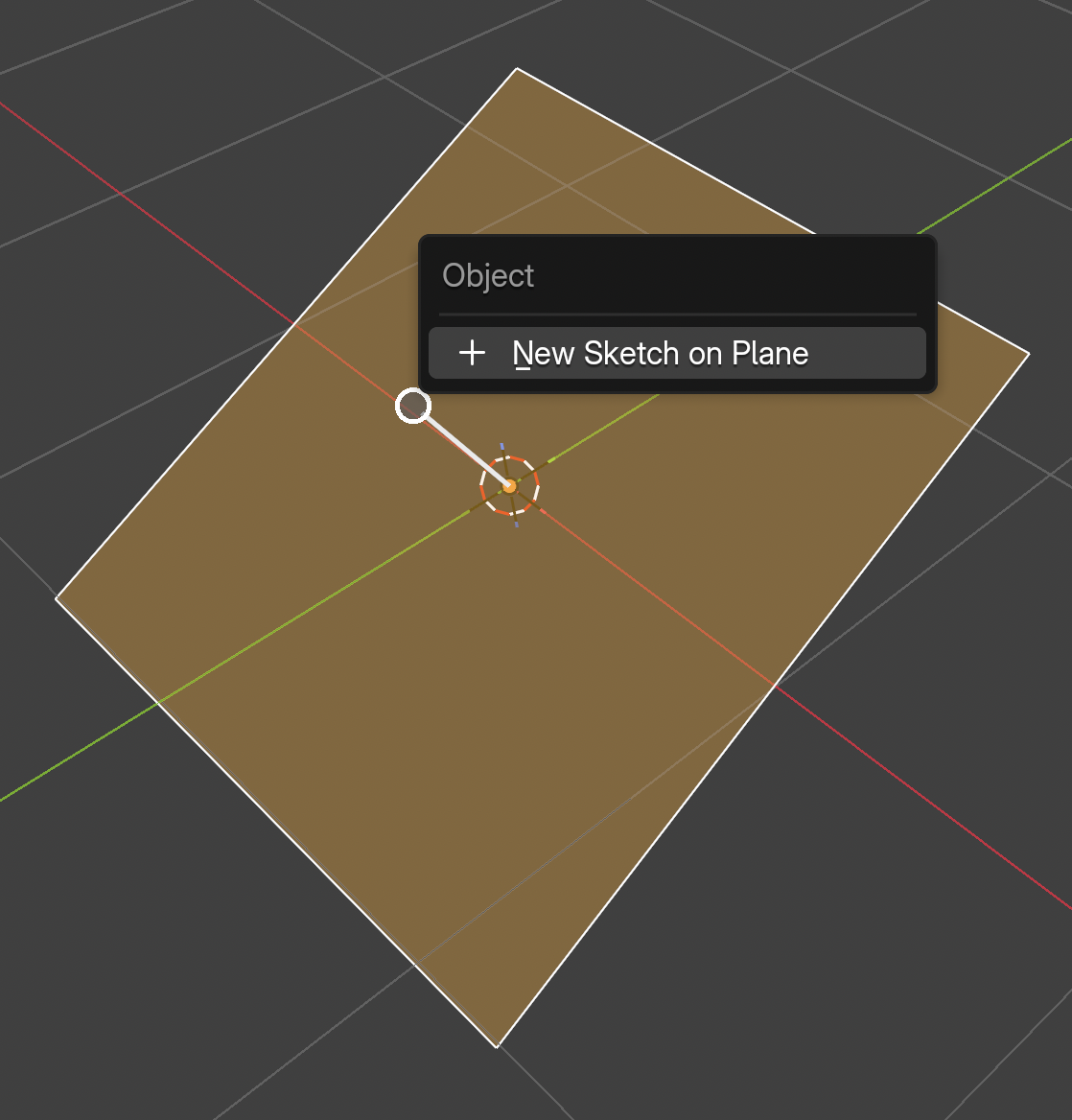 |
Aligning the view
The view turns to face the sketch. After orbiting away, press Shift+Numpad 1 (or Align View to Sketch) to look at it straight on again. Press Tab to leave sketch editing.

Drawing tools
| Icon | Tool | How it works | Key |
|---|---|---|---|
 | Line | Click to place connected line segments. | L |
 | Rectangle | Corner to corner. | Q |
 | Rectangle (Center) | From the center outward. | Shift+Q |
 | Circle | Center, then radius. | C |
 | Circle (2 Points) | Through two points. | Shift+C |
 | Slot | A stadium shape, with rounded ends. | U |
 | Point | Click to place points. They snap to existing geometry. Right-click or Esc to stop. | P |
 | Trim | Trim a curve back to its nearest intersections. | T |
 | Dimension | Fix a size to an exact value. See Dimensions. | D |
Snapping
The Grid Snap checkbox in the Sketch panel enables snapping to the grid. Select your snapping distance from the dropdown. The auto setting is based on your length unit (e.g., 1 cm when units are millimeters).
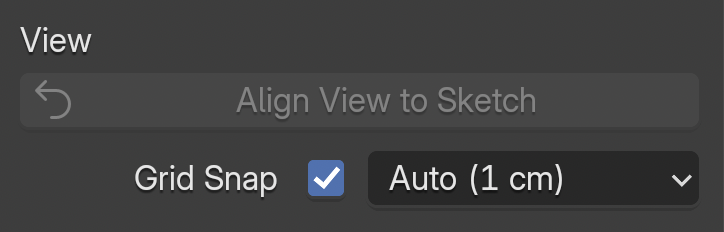
Selecting and editing
- Click a point to select it, a line to select both endpoints, or a circle or arc to select the curve. Shift+click adds to the selection.
- Box select by dragging on empty space, or press B.
- G, R and S move, rotate and scale the selected points. Constraints keep holding while you do.
- X or Delete removes the selection, including constraints.
- F fixes the selected points in place, or unfixes them if they are already fixed. Fixed points cannot be moved, and neither can anything selected together with them.
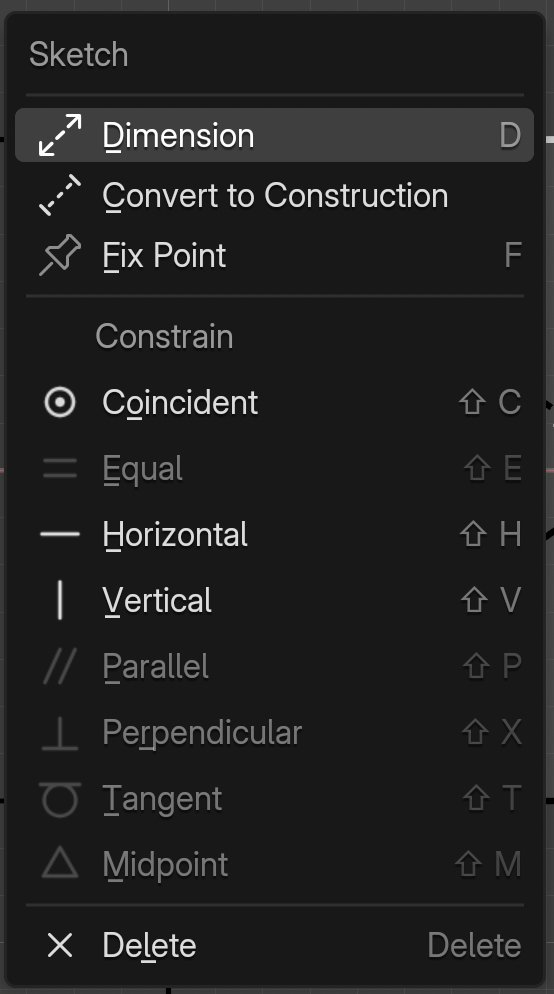
- Right click opens a context menu for the element under the cursor: dimension it, toggle construction, pin it, or delete it.
Construction geometry
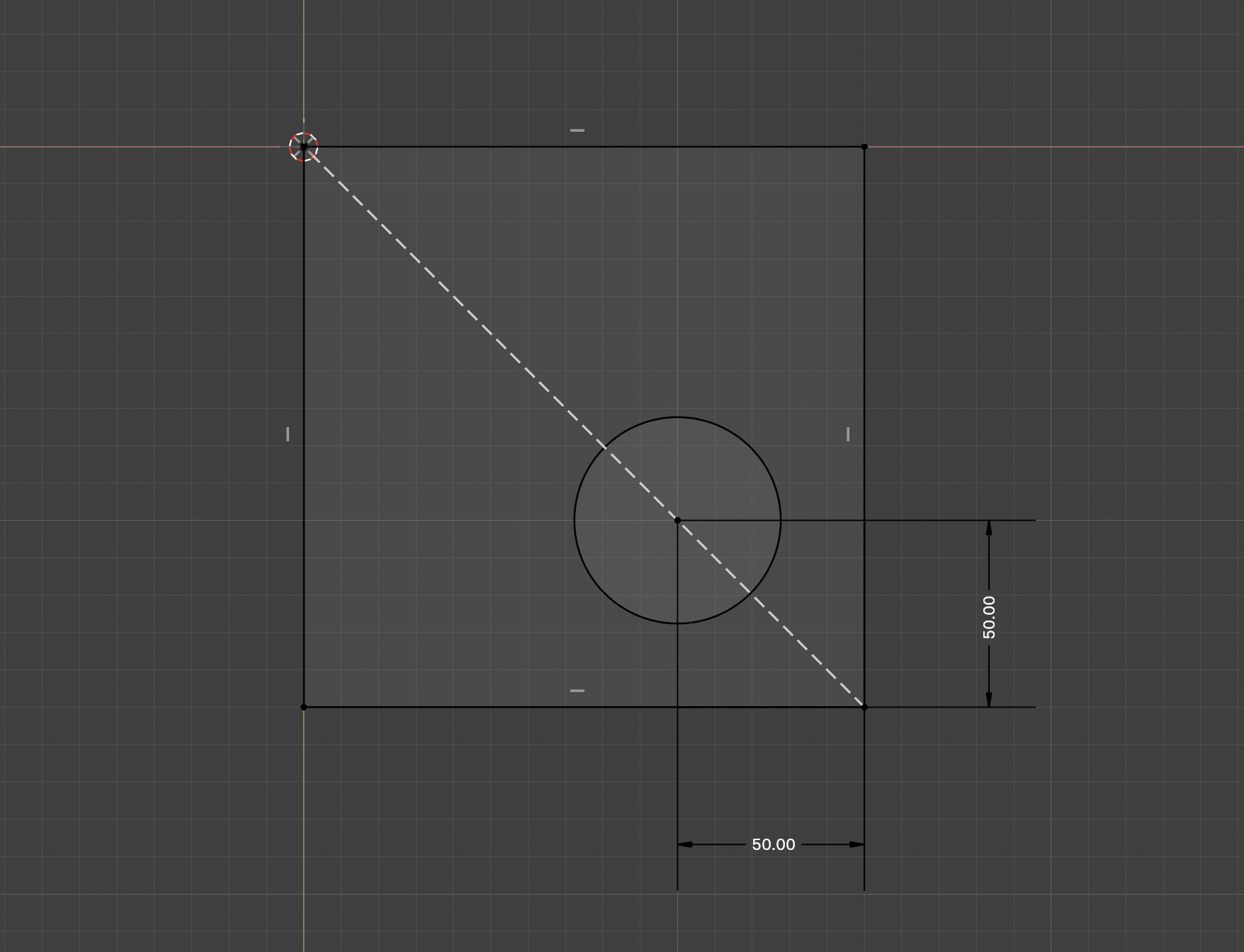
Construction lines and circles guide a sketch but are not part of the profile. They can also serve as revolve axes. Toggle them from the context menu, or draw in construction mode.
Constraints#
Constraints are rules that keep a sketch’s geometry related as you edit it. Select the geometry, then press the shortcut. Applied constraints show as small badges, and are listed in the sidebar where you can select or delete them.
| Glyph | Key | Constraint | Select |
|---|---|---|---|
 | Shift+C | Coincident | Two points, or a point and a line, circle or arc |
 | Shift+H | Horizontal | A line |
 | Shift+V | Vertical | A line |
 | Shift+E | Equal | Two lines (same length) |
 | Shift+P | Parallel | Two lines |
 | Shift+X | Perpendicular | Two lines |
 | Shift+T | Tangent | A line and a circle or arc, or two circles or arcs |
 | Shift+M | Midpoint | A point and a line |
 | F | Fixed | One or more points. Pins them in place so the solver never moves them. Press again to unfix |
Dimensions#
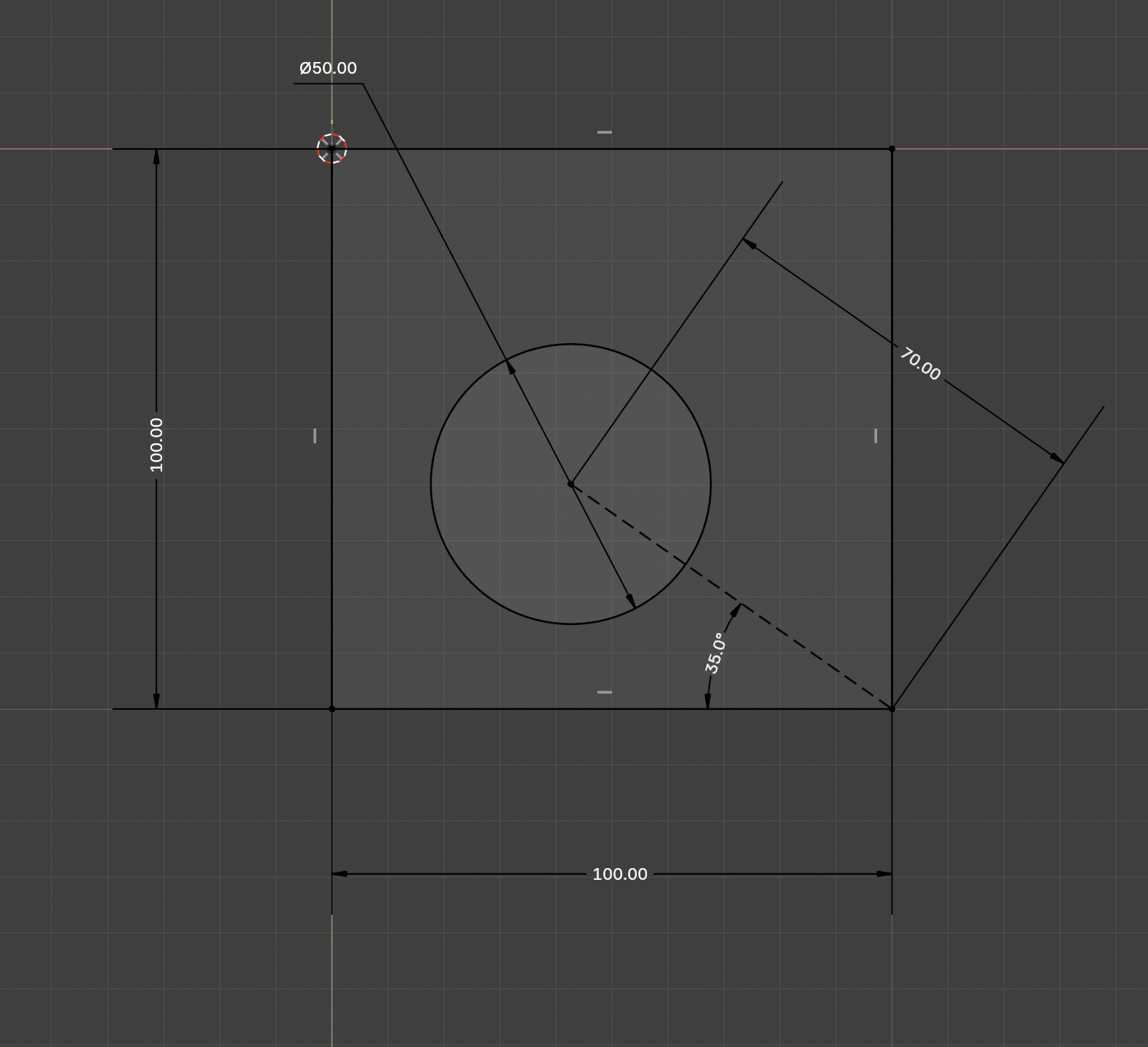
Dimensions fix a size to an exact value. Press D with something selected to dimension it immediately, or press D with nothing selected to start the Dimension tool and click what to measure.
- Line length and distance between two points.
- Diameter of a circle or arc.
- Angle between two lines.
Type the value and confirm, and the sketch resizes to match. Afterwards you can:
- Edit a dimension to type a new exact value by clicking on the value.
- Move its label by dragging it.
- Switch a distance between horizontal, vertical and direct measurement.
- Delete it from the right-click menu or the constraint list.
A sketch with every degree of freedom fixed is fully constrained. You do not have to get there: a loose sketch extrudes just as well. Add dimensions only where you need exact sizes.


Building solids#
Extrude / Cut E
The main modeling tool. It works on two kinds of input:
- A face of the part: click it, press E, and drag to push or pull. A positive drag adds material, a negative one removes it.
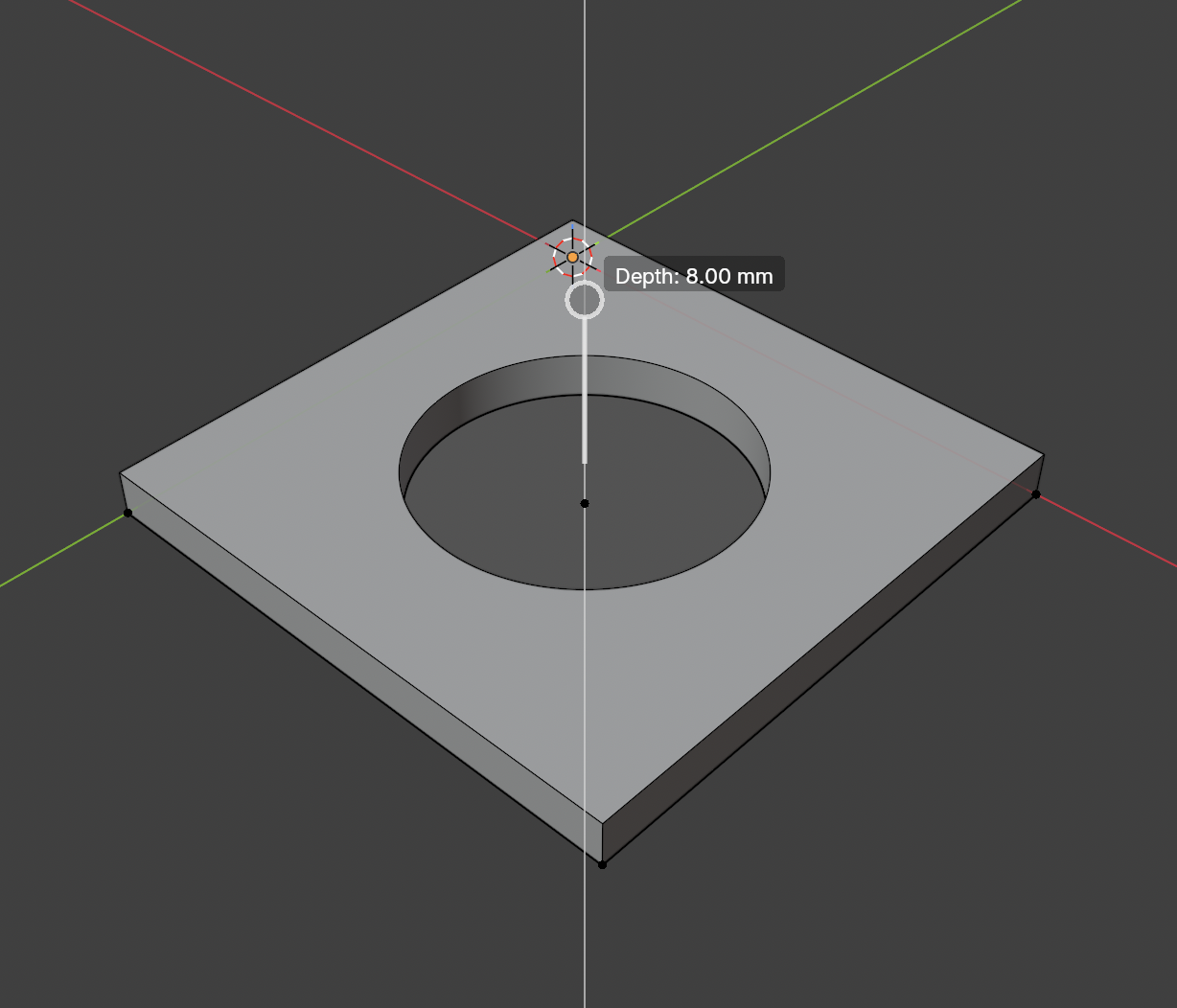
- One or more sketch areas: click to select (Shift+click for several, even across different sketches), then press E and drag the depth.
| Option | Meaning |
|---|---|
| Join | Add the extruded volume to the part |
| Cut | Remove the extruded volume from the part |
| Intersect | Keep only the overlap with the part |
| New Part | Make the extrusion a separate new part |
| One Side / Symmetric / Through All | Extrude one way from the sketch plane, equally both ways, or (for a cut) all the way through the part (the Depth field is hidden then) |
Revolve V
Spins the closed areas of one sketch around an axis. Choose the axis in the dropdown: a construction line in the sketch, or the X, Y or Z axis. Drag the round handle, or type an angle in degrees. Operation can be Join, Cut or Intersect.
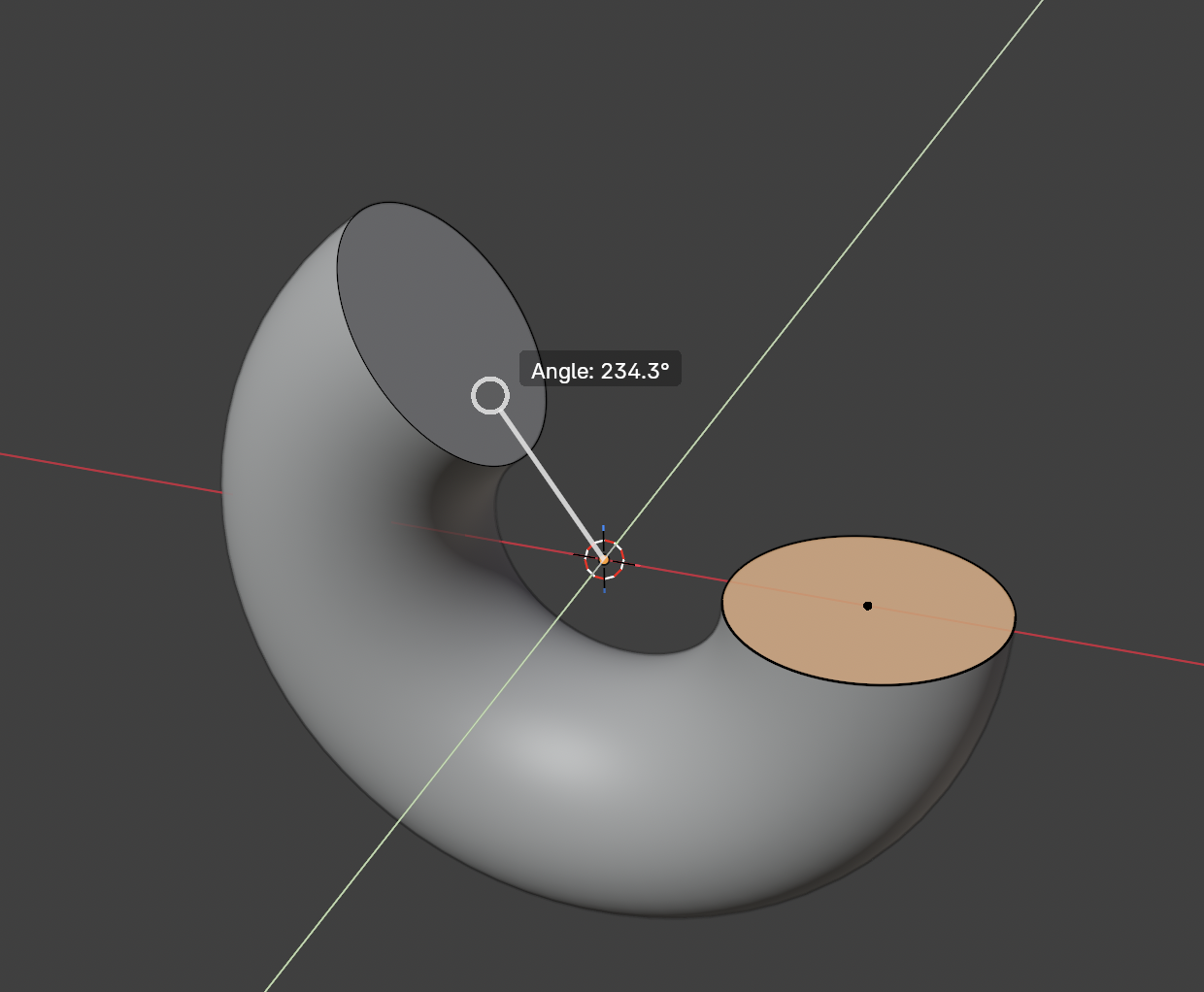
Loft O
Builds one solid through two or more cross-sections, in the order you pick them. A section can be a sketch area or a flat face of the part, and you can mix them, for example from a face of the body to a sketch on a plane above it. Choosing the Loft tool (or pressing O) opens a panel with a Start and an End picker. Click an area or face in the viewport to fill the highlighted picker, or click a picker first to choose which one to fill. The X next to a picker empties it, and clicking a picked area again removes it. Shift+click adds extra sections in between. Press R to switch between a smooth and a ruled (straight-sided) loft. Operation can be Join, Cut or Intersect. Areas with holes are not supported yet.
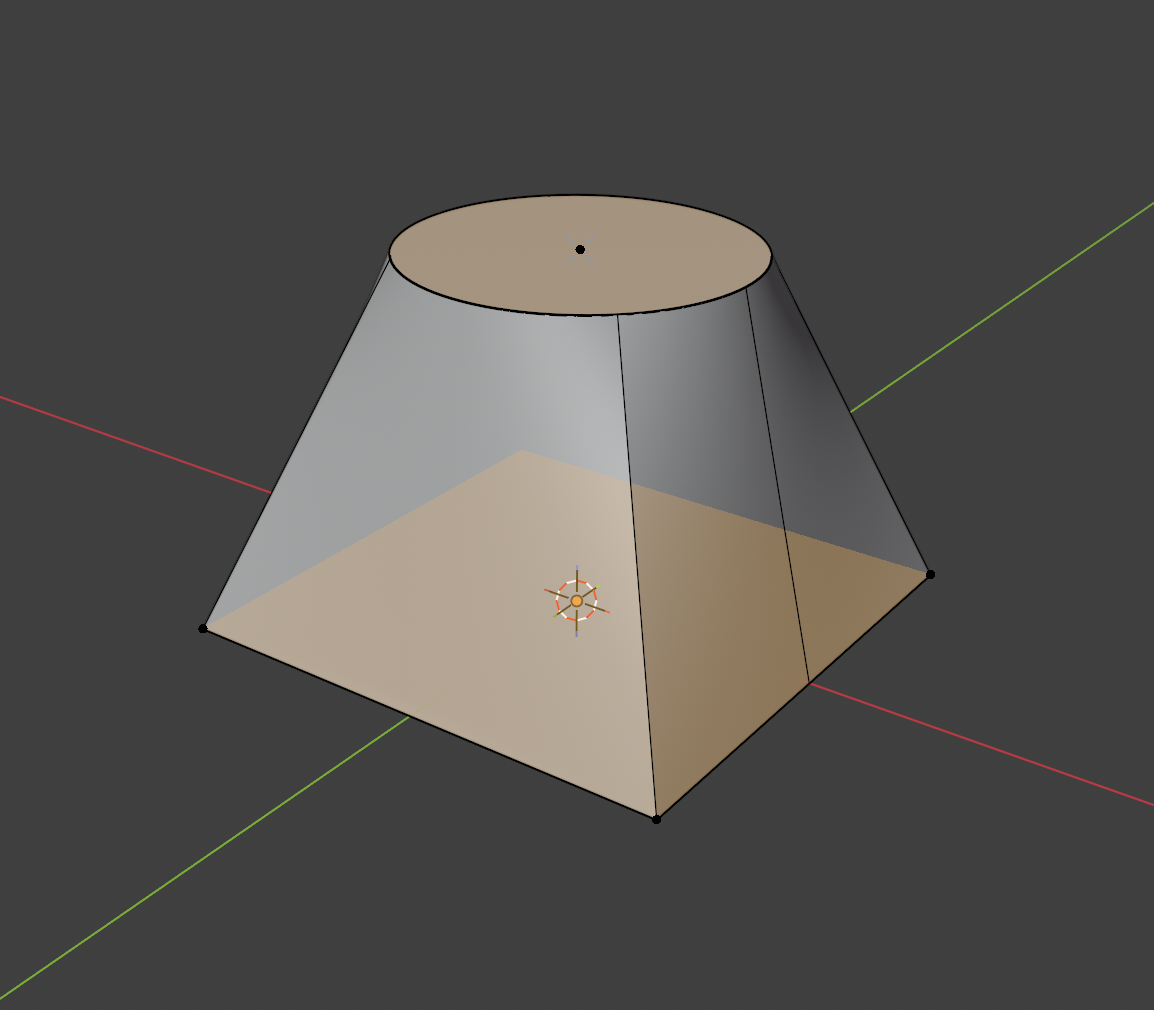
Chamfer and Fillet Ctrl+B
Select one or more edges (Shift+click to add), press Ctrl+B, and move the mouse right away to set the size. Click or press Enter to confirm. Switch between Chamfer (flat bevel) and Fillet (round) with their buttons, and type an exact size. To change which edges a committed feature uses, open it in Feature Settings and edit its edges.
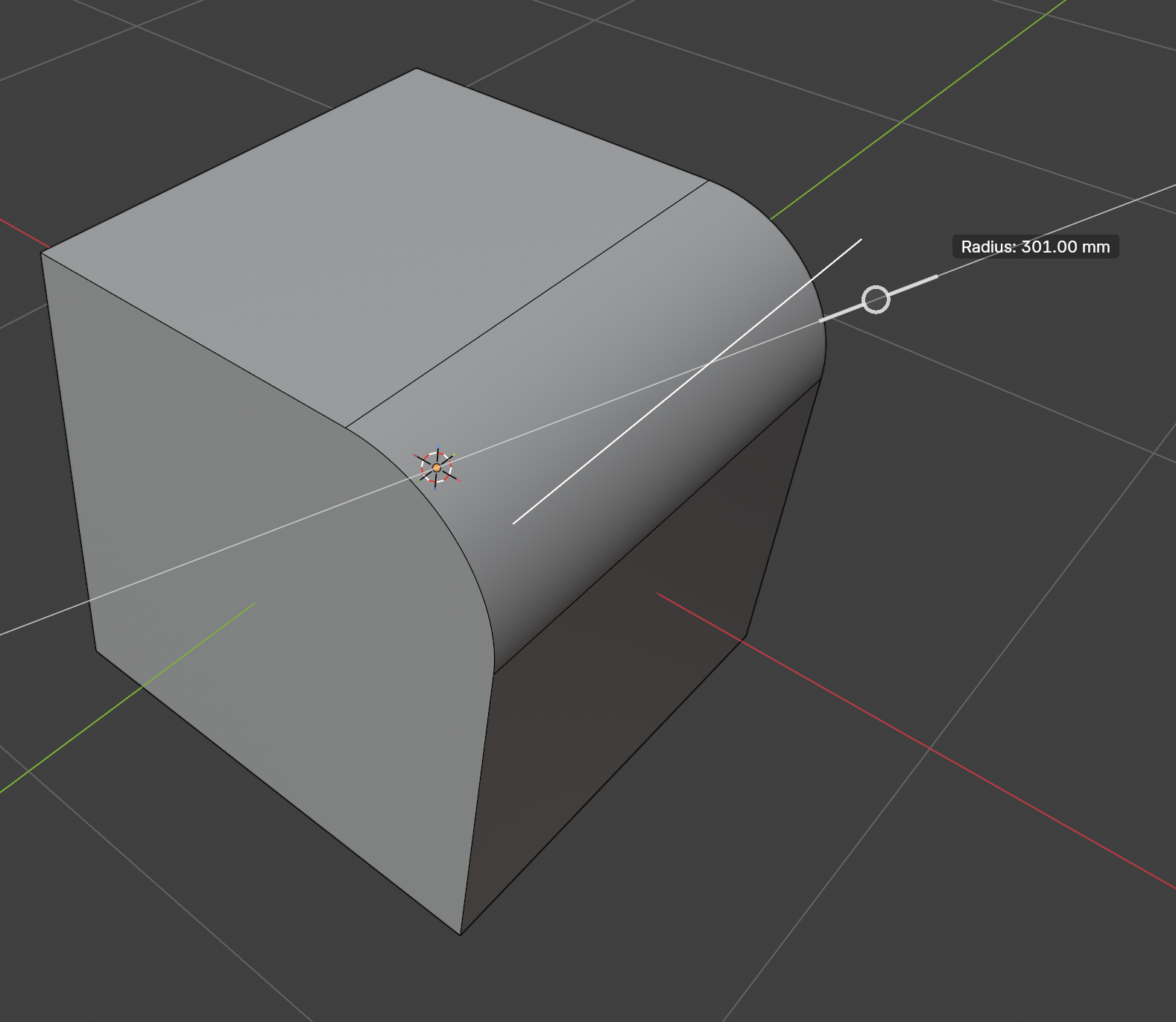
TipVery large radii, or edges that meet at awkward angles, can fail. If that happens you get a clear message and nothing changes. Try a smaller size, or fewer edges at once.
Shell I
Hollows a solid. Click a face to remove it, and the rest of the part gets a wall of the thickness you set. To open several faces, Shift+click more faces while the panel is open, or press the Faces Edit button and click faces (Shift+click to add or remove). Reopen the feature to add or remove open faces later.
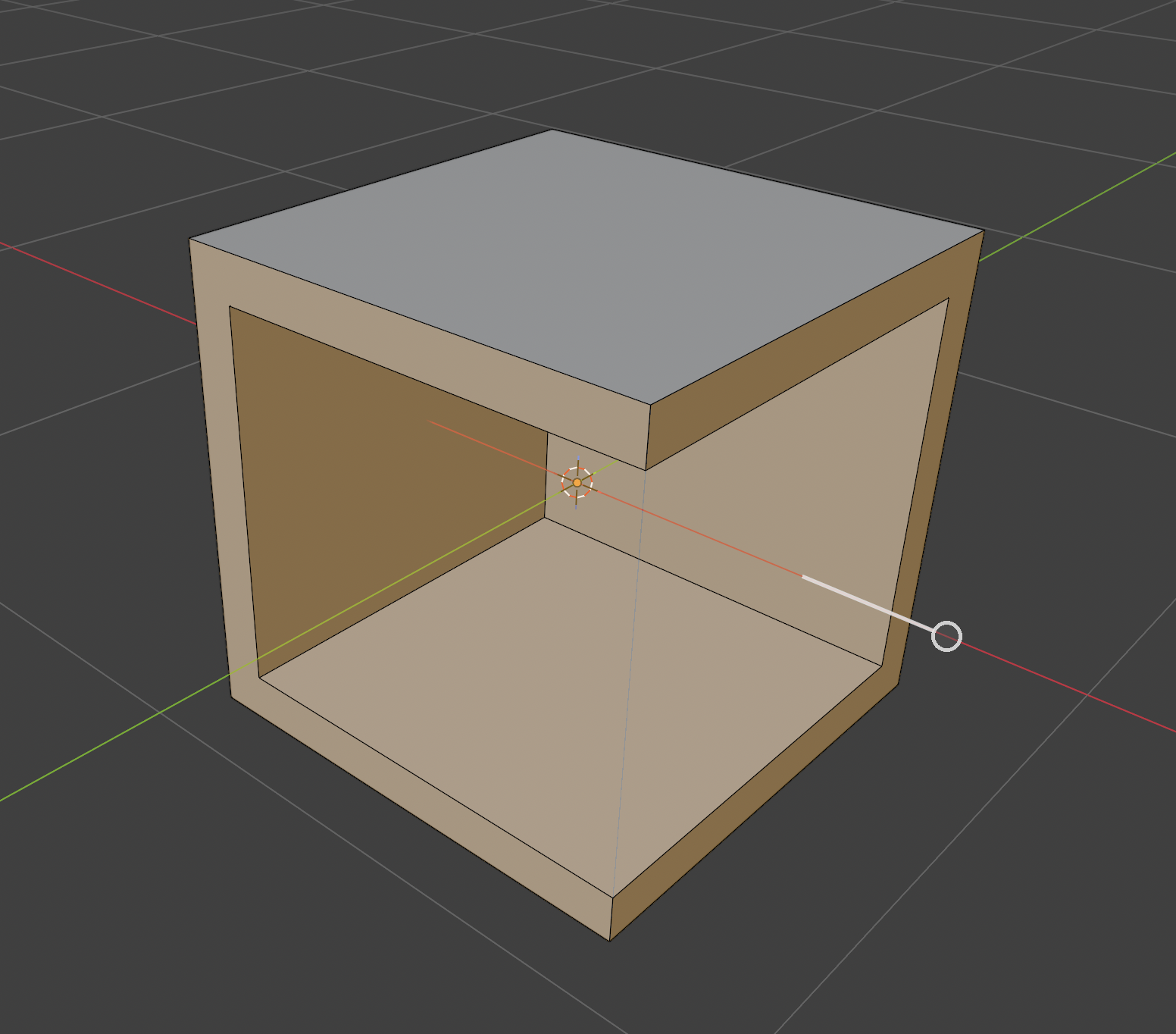
Mirror M
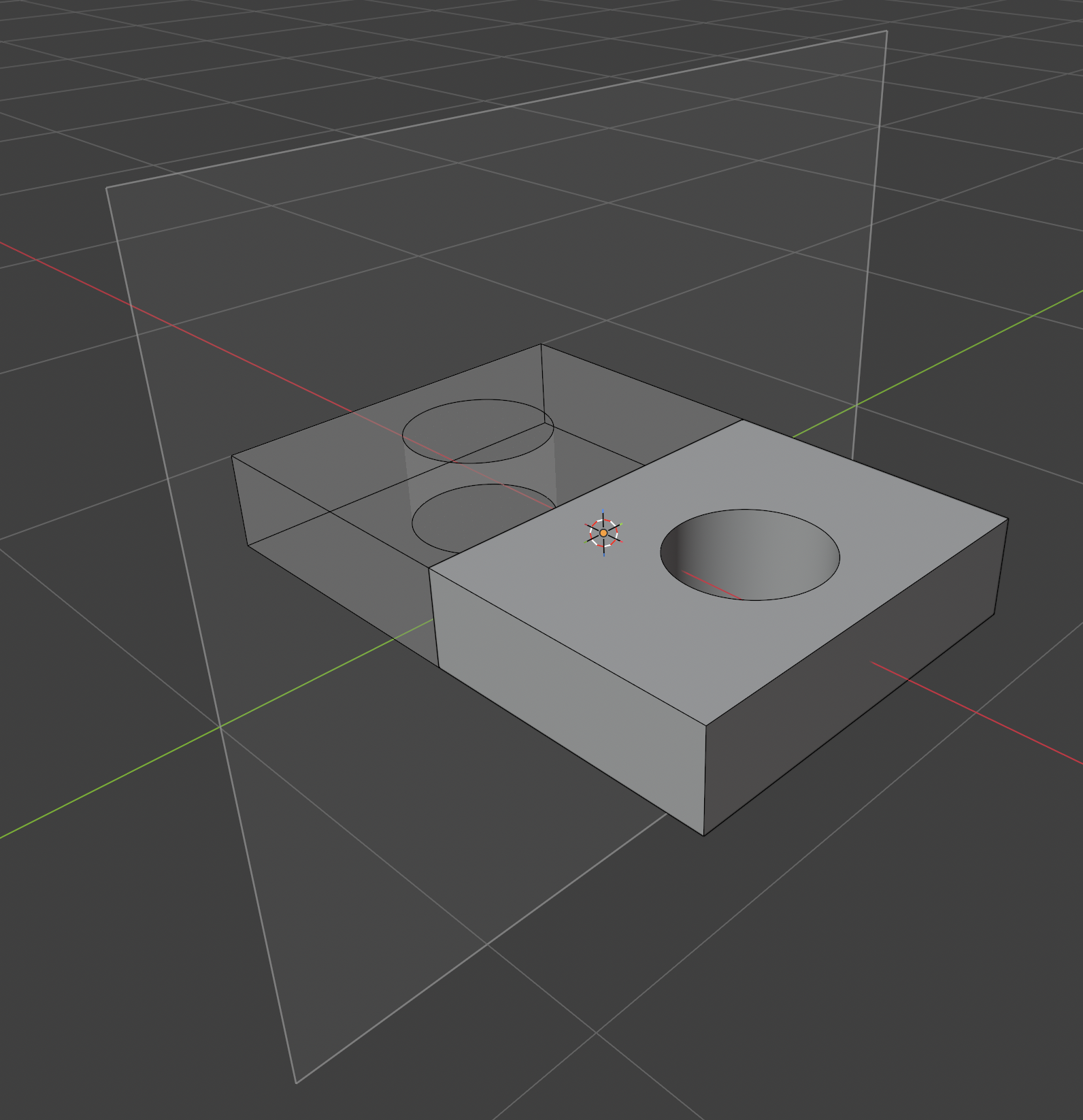
Picking the tool opens the Mirror panel straight away, with the part already mirrored across the X plane. Mirrors the whole part, or only chosen features, across a plane. Pick the plane as the X, Y or Z world plane, click a flat face, or choose a custom plane. Choose whether to mirror the entire Body or just a single Feature.
Boolean
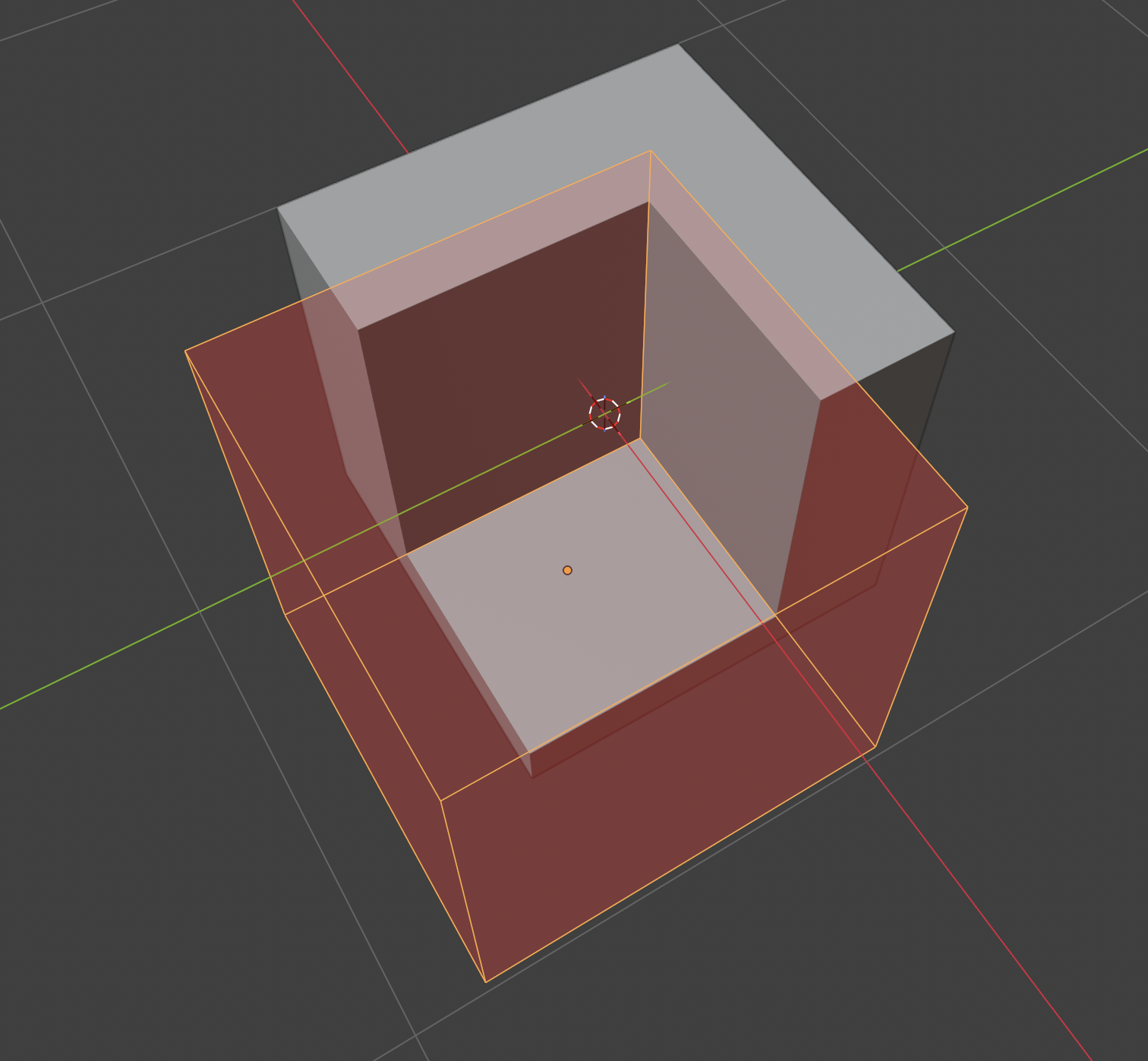
Combines two objects. Booleans only work outside CAD Mode, so leave CAD Mode first. They work between two selected objects, and can combine CAD parts with each other. Select both objects, then use the Boolean button and choose Union (merge), Difference (subtract) or Intersect (keep overlap) from its dropdown before confirming.
The Swap button under the Object and Tool fields swaps the two objects.
Section View K
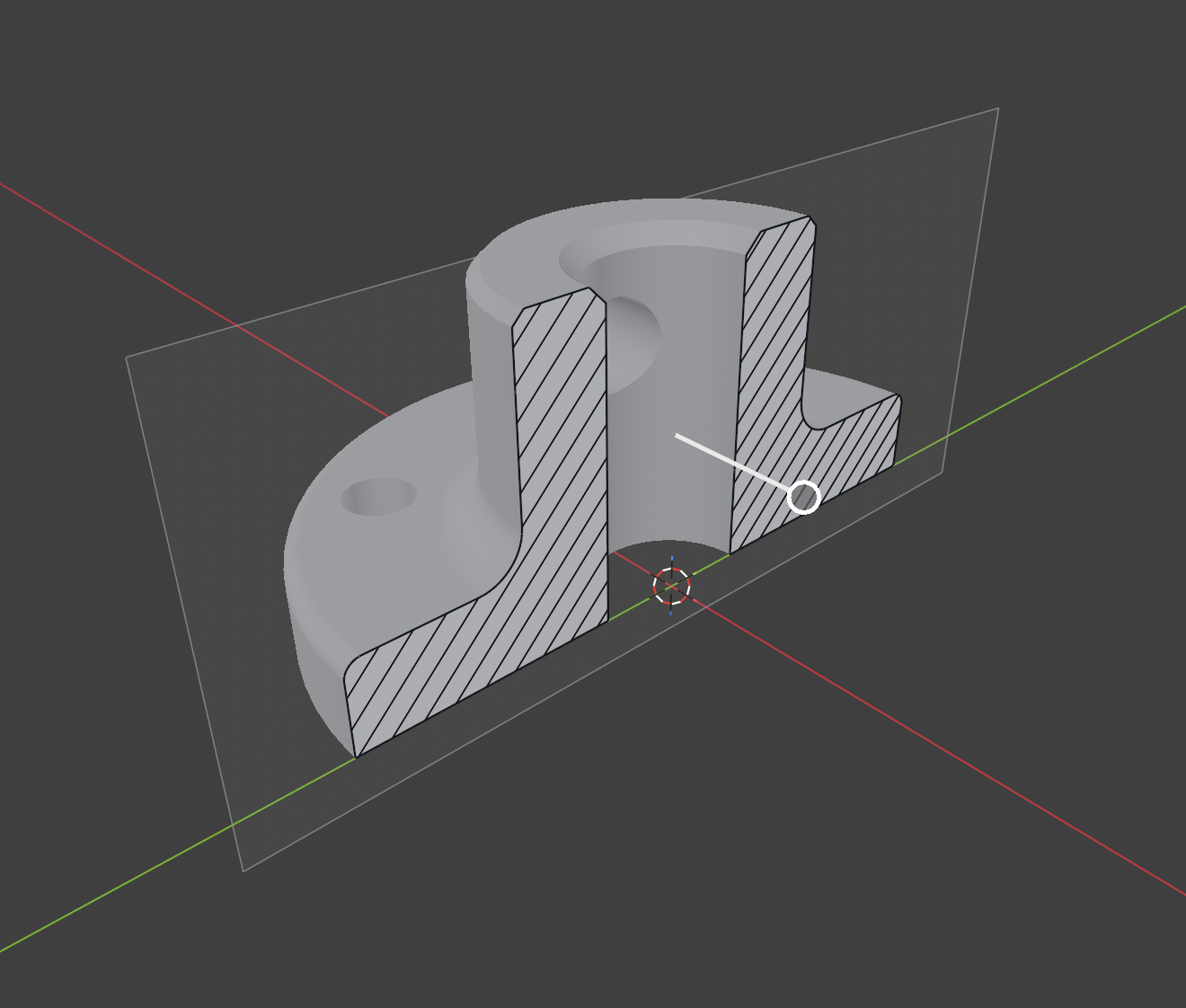
Slices the part with a movable plane and shows the cut face hatched, so you can inspect the inside. Drag the plane to move it, use Center to reset it to the middle, and Exit Section View when done. It is a viewing aid only and does not change the part.
Feature History#
The Feature History panel lists everything that built the active part, from the first shape downward. Think of it as the modifier stack for solids.
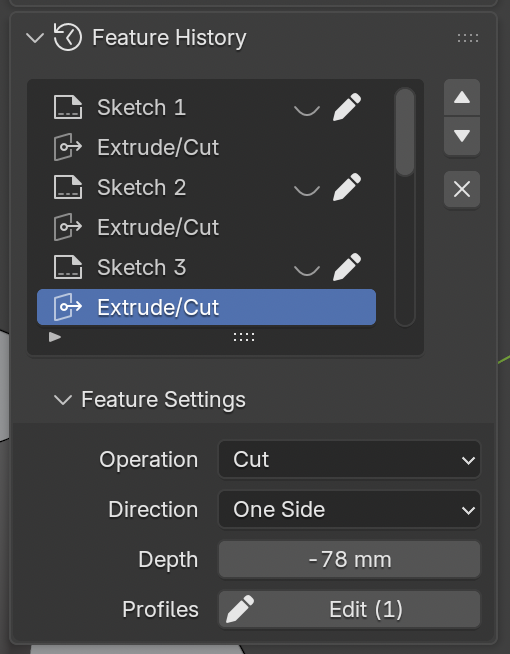
- Select an entry to see and edit its values in Feature Settings, such as a distance, radius or operation.
- Select a sketch entry and use Edit Sketch in Feature Settings to reopen it for editing.
- Step back: selecting an earlier entry shows the part as it was at that point. Later entries are not applied while you look at an earlier one, so you can scrub through how the part was made.
- Edit upstream: change an early value, such as the size of the first sketch, and every later entry rebuilds on top of it.
Heads upFillets, chamfers and shells remember which edges or faces you picked by position. After a large change early in the history, a later feature can end up pointing at a different edge. If a result looks wrong, open that feature and re-pick its edges or faces.
STEP import and export#
STEP is the standard exchange format for CAD. Use it to bring in parts from libraries, other software, and to send your parts to manufacturing or other CAD software.
Import
Choose Import STEP in the TrueCAD tab and pick a .step or .stp file.
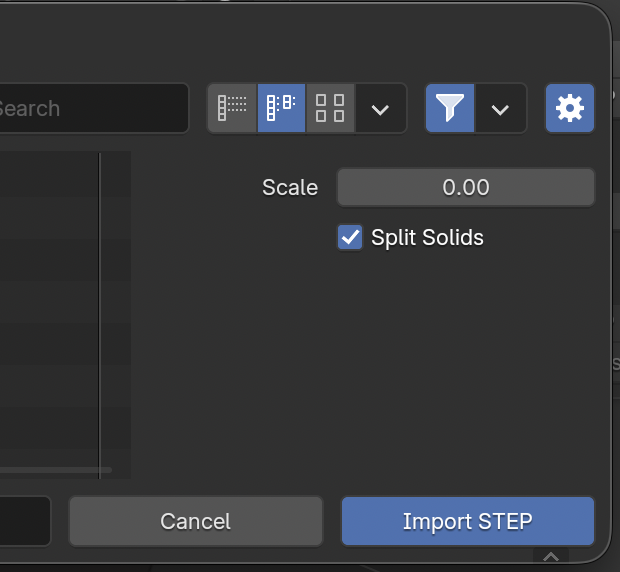
| Option | Meaning |
|---|---|
| Scale | Converts file units to Blender meters. The default 0.001 is right for files in millimeters. |
| Split Solids | On: one CAD object per solid. Off: one object per top-level part. |
Imported parts are true CAD solids, so you can fillet, cut and combine them like parts you made yourself.
Export
Select the CAD objects to send and choose Export STEP.
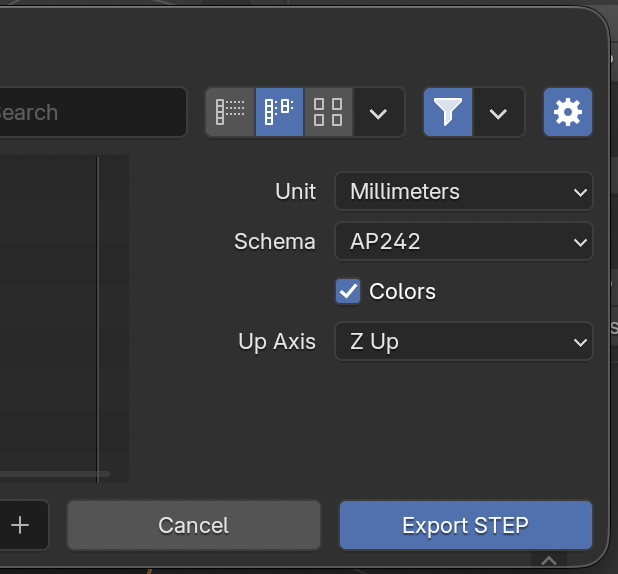
| Option | Meaning |
|---|---|
| Unit | Millimeters or meters |
| Schema | AP242 (newest, richest), AP214 (widest compatibility), AP203 (geometry only, oldest) |
| Up Axis | Z Up (Blender orientation) or Y Up (rotates the model so Y points up in the file) |
| Colors | Write each object’s color into the file |
TipIf the receiving software is picky, try AP214.
Working with meshes#
- CAD parts display as clean, sharp-edged meshes and behave like normal Blender objects: materials, modifiers, parenting, rendering, and so on. This mesh is only a viewport preview, the true CAD geometry is stored underneath.
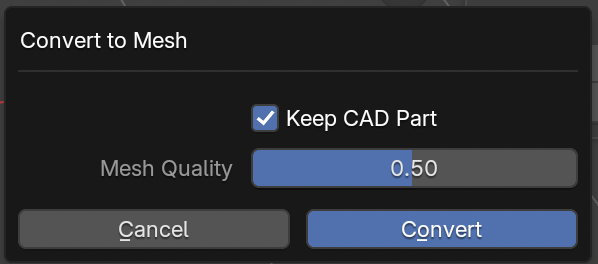
- Convert to Mesh opens a small popup with two options: Keep CAD Part (on by default, creates the mesh as a new object and leaves the CAD part untouched) and Mesh Quality (the density of the mesh). With Keep CAD Part off, the shape is baked into a plain mesh in place and the exact shape and Feature History are discarded. Use it when you are finished with the CAD work and want to sculpt or edit freely.
Heads upIf you enter Blender’s own Edit Mode on a CAD part and change the mesh, it no longer matches its exact shape. Prefer CAD Mode for CAD parts, and use Convert to Mesh when you want to edit the mesh.
Shortcuts Overview#
Shortcuts are shown for your system. On Windows the modifier key is Ctrl. On macOS it is Cmd. In Blender, hover any button or tool in Blender to see its shortcut.
Modeling
| Key | Action | Where |
|---|---|---|
| Tab | Enter or leave CAD Mode (or sketch editing) | CAD part or sketch active |
| Click / Shift+click | Select, or add to selection | CAD Mode |
| E | Extrude / Cut | CAD Mode |
| V | Revolve | CAD Mode |
| O | Start a loft between sketch areas or faces | CAD Mode |
| Ctrl+B | Chamfer / Fillet selected edges | CAD Mode |
| M | Mirror | CAD Mode |
| I | Shell | CAD Mode |
| K | Section View | CAD Mode |
| Enter | Confirm the running operation | During an operation |
| Esc | Cancel the running operation | During an operation |
Sketching
| Key | Action |
|---|---|
| L | Line |
| Q / Shift+Q | Rectangle / Rectangle from center |
| C / Shift+C | Circle / Circle through 2 points |
| U | Slot |
| P | Point |
| T | Trim |
| D | Dimension |
| B or drag | Box select |
| G / R / S (with a selection) | Move / rotate / scale the selected points |
| X / Delete | Delete selection |
| F | Fix / unfix the selected points |
| Right click | Sketch context menu |
| Shift+Numpad 1 | Align view to sketch |
| Shift+H / V | Horizontal / Vertical |
| Shift+C | Coincident (with points selected) |
| Shift+E | Equal |
| Shift+P / X | Parallel / Perpendicular |
| Shift+T | Tangent |
| Shift+M | Midpoint |
Disabled while editing
G, R, S on the whole object, H (hide), Shift+D and Alt+D (duplicate) do nothing during CAD Mode or sketch editing. This stops accidental changes to exactly dimensioned work.
Still haven’t found what you’re looking for?#
Join the Discord and ask. Questions, bug reports and feature requests are all welcome.
Join the Discord for help